Beyond the Terminal: goose Controls Your Desktop with Peekaboo

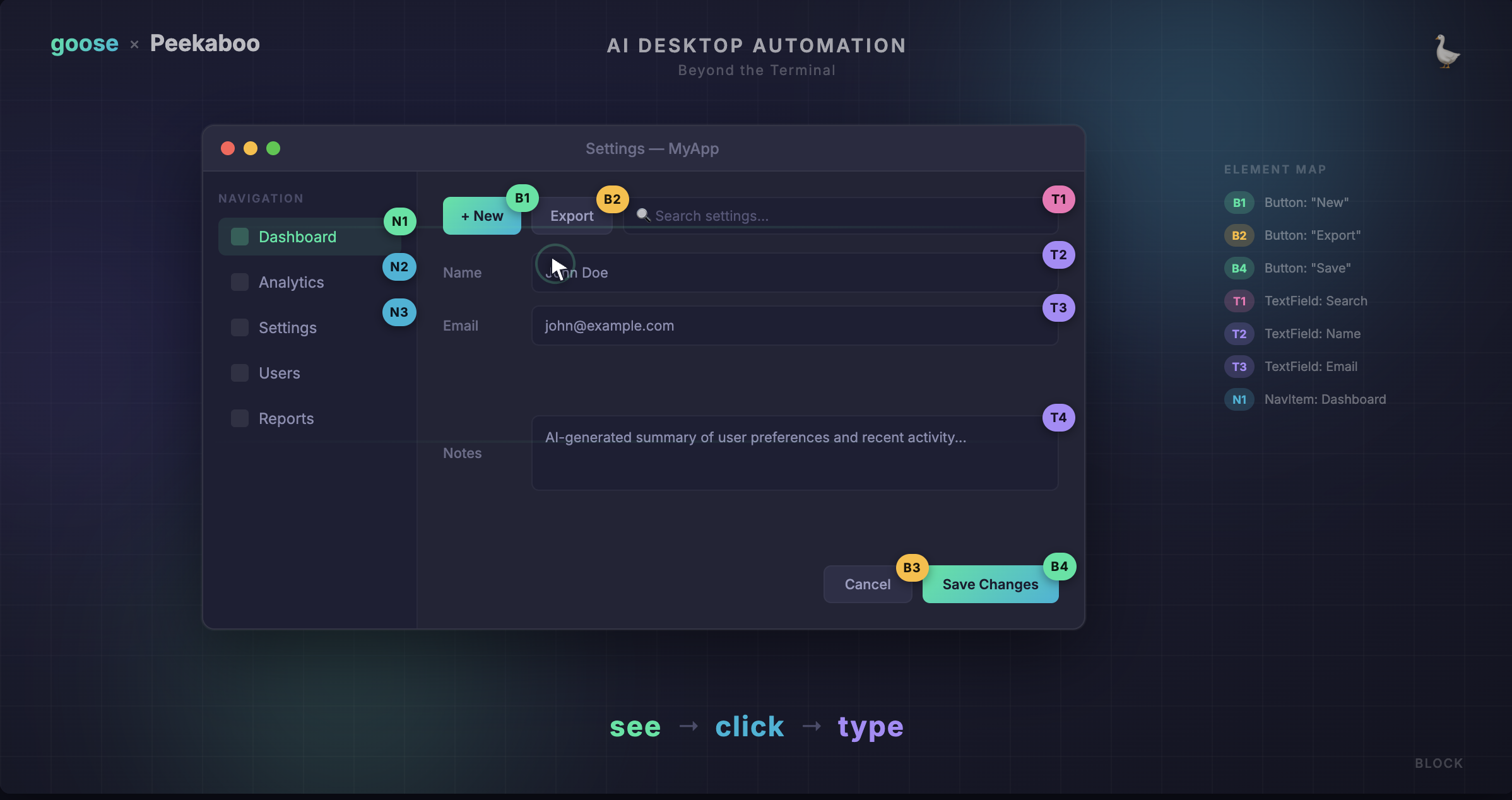
Most AI agents live in the terminal. They can read files, run commands, and write code — but ask them to click a button in a web app or fill out a form, and they're stuck. They can't see what's on screen, and they certainly can't interact with it.
With v1.26, goose broke out of the terminal. The Computer Controller extension was rebuilt from the ground up with Peekaboo, a macOS CLI tool for screen capture and GUI automation. This gives goose eyes and hands for the desktop — it can see annotated screenshots, identify UI elements, click buttons, type text, scroll, drag, and navigate menus across any application on your Mac.
The see → click → type loop
The core workflow is dead simple and surprisingly reliable:
- See — goose takes an annotated screenshot of an app. Every clickable element gets a labeled ID like
B1,B2,T1. - Click — goose clicks on an element by its ID. No fragile pixel coordinates.
- Type — goose types text, presses keys, or uses keyboard shortcuts.
Because element IDs are tied to actual UI components (not screen positions), this approach adapts to different window sizes and positions. goose doesn't need to know where a button is on screen — just what it is.
Here's what that looks like in practice:
goose: Let me see what's on screen...
→ see --app Safari --annotate

goose: I can see the form. Clicking on the email field...
→ click --on T3
→ type "hello@example.com" --return
The see command returns both an annotated screenshot (that is stored temporarily in memory) and structured JSON data with element IDs, labels, and types. This combination of vision and structure is what makes the interaction reliable.
What can goose actually do with this?
Once goose can see and interact with your screen, the range of tasks it can handle expands dramatically. Here are some real examples:
Fill out forms
"Go to the HR portal and submit my time off request for next Friday"
goose opens the browser, navigates to the page, identifies the form fields, fills them in, and clicks submit — all by seeing the UI and interacting with it step by step.
Navigate complex UIs
"Open Figma, find the design called 'Homepage Redesign', and export it as PNG"
Multi-step workflows across apps that don't have APIs become possible. goose can click through menus, search within apps, and follow multi-screen flows.
Control system settings
"Turn on Do Not Disturb and set my display brightness to 50%"
System preferences, menu bar items, and macOS settings are all accessible through Peekaboo's menu, menubar, and dialog commands.
Automate repetitive GUI tasks
"For each PDF in my Downloads folder, open it in Preview and print it"
goose can combine its existing file system and shell capabilities with GUI automation — reading a directory listing, then opening and interacting with each file visually.
The full command toolkit
Peekaboo gives goose a comprehensive set of commands for interacting with macOS across vision, interaction, and system control. Check out the Peekaboo docs for a full list. Some highlights:
see— capture an annotated screenshot and get structured UI dataclick— click on an element by its IDtype— type text or press keysscroll— scroll within an elementdrag— click and drag from one element to anothermenu— interact with menu bar itemsdialog— interact with system dialogs and notifications
Tips for best results
After using the Computer Controller extensively, here are a few things that help:
- Don't touch your mouse while goose is working. goose takes screenshots and clicks based on what it sees. If you move things around mid-task, it'll get confused.
- Be specific in your prompts. "Click the blue Submit button at the bottom of the form" gives goose much more to work with than "submit it."
- Let goose see first. goose will naturally start with a
seecommand to understand the current UI state before taking action. If you're debugging an interaction, ask goose to take a fresh screenshot. - Long text goes through paste. For reliability, goose uses
pasteinstead oftypewhen entering longer content. This avoids issues with special characters and typing speed.
Current limitations
The Computer Controller is powerful, but it's worth knowing the boundaries:
- macOS only (for now) — Peekaboo is built on macOS accessibility APIs. On Windows and Linux, the Computer Controller falls back to shell-based automation (PowerShell scripts on Windows, xdotool/wmctrl on Linux).
- Fast-changing UIs can be tricky — Videos, animations, and rapidly updating content can cause goose to see stale state. Static or slow-changing UIs work best.
- Standard UI elements work best — Custom-rendered canvases (like some game UIs or heavily custom web apps) may not expose accessibility labels that Peekaboo can identify.
- One screen at a time — goose works with one screenshot per
seecommand, though you can target specific screens in multi-monitor setups with--screen-index.
Try it out
The Computer Controller extension is built into goose — just enable it in your extensions and start asking goose to do visual tasks. If you're on macOS, Peekaboo will handle the rest.
In goose Desktop, go to Extensions and toggle on Computer Controller. In the CLI:
goose configure
# → Toggle Extensions → enable computercontroller
Then try something simple:
Take a screenshot of my current screen and describe what you see.
Or something more ambitious:
Open System Settings, go to Displays, and set the resolution to "More Space."
goose will figure out the rest — seeing the UI, identifying the right elements, and clicking through to get it done.